
Why Is My Image Blurry at 20kb and How to Fix It
Understand the physics of JPEG compression quantization, pixel density, and how to achieve pin-sharp photos and signatures under 20KB without installing Photoshop.
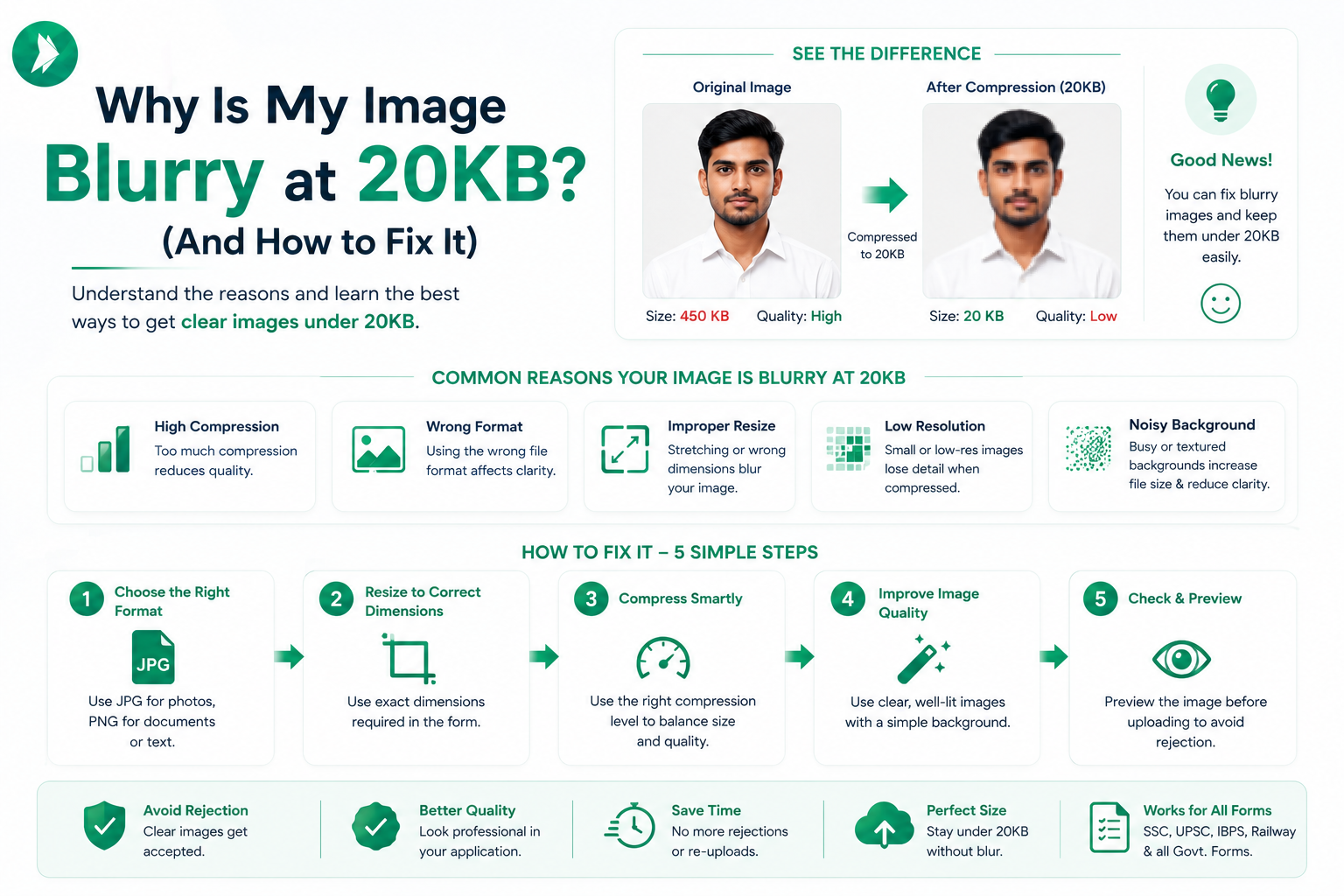
Applying for government jobs or university admissions in India often requires strict digital document uploads. Many portals demand files under a specific size limit, which frequently leads to frustration when your file loses clarity. You might wonder why is my image blurry at 20kb after a quick compression attempt.
This common issue happens because aggressive shrinking strips away essential pixel data. Maintaining visual integrity while meeting these tight constraints requires a balanced approach to resolution and file formats.

Our platform, ImageTo20KB.com, specializes in helping you improve image quality for these exact scenarios. We ensure your documents remain legible for officials while staying within the required technical boundaries. By adjusting dimensions and compression settings properly, you can achieve professional results every time.
Key Takeaways
- Understand the balance between file size and visual clarity for Indian application portals.
- Learn how aggressive compression often causes pixelation in small files.
- Discover how ImageTo20KB.com preserves document readability for official uploads.
- Explore the impact of resolution and file formats on your final output.
- Master simple techniques to meet strict 20KB requirements without losing detail.
Why Is My Image Blurry at 20kb?
Reducing a high-resolution photo to a tiny 20KB file often leads to unexpected quality issues. Many users in India face this frustration when preparing documents for online portals. You might ask yourself, why is my image blurry at 20kb, especially when the original file looked perfectly sharp on your screen.
How a strict 20KB limit affects image quality
A 20KB limit is extremely restrictive for modern digital cameras and smartphones. When you force a large file into such a small space, the software must discard a significant amount of data. This loss of data directly impacts image quality, often resulting in a loss of fine textures and sharp edges.
Why compression removes detail from photos and graphics
Most image compression tools work by identifying patterns and removing information that the human eye might not notice immediately. However, when the target size is as low as 20KB, the algorithm becomes aggressive. It sacrifices subtle color gradients and fine lines, which are essential for keeping text and signatures legible.
The difference between a blurry image and a pixelated image
It is important to distinguish between two common visual problems. A blurry image usually results from software smoothing out details to save space. In contrast, pixelated images appear blocky or jagged, often because the resolution was reduced too much or the image was stretched beyond its original pixel count.
Why small file size does not always mean a properly optimized image
Achieving a small file size does not guarantee that your document will be accepted by a portal. If you simply shrink an image without considering the aspect ratio or format, you might end up with a file that is technically 20KB but visually unusable. Using a dedicated tool like ImageTo20KB.com helps you find the right balance between size and clarity.
| Issue Type | Primary Cause | Visual Result |
|---|---|---|
| Blurry | Aggressive Smoothing | Soft, indistinct edges |
| Pixelated | Low Resolution | Blocky, jagged edges |
| Artifacts | High Compression | Color noise and halos |
What Causes Image Quality Loss During Compression?
Achieving a perfect balance between file size and visual quality requires knowing how image compression works. When you try to reduce file size to meet specific requirements for Indian government or educational portals, you might accidentally trigger significant quality loss. Understanding these technical pitfalls helps you maintain clarity while staying under the 20KB limit.
Excessive lossy compression and repeated file saving
Every time you save a JPEG file, the software discards some data to shrink the file. If you open, edit, and save the same image multiple times, you create a cycle of degradation. This process leads to a noticeable drop in image quality that cannot be undone.
Incorrect image dimensions and forced resizing
Forcing a large, high-resolution photo into a tiny file size often requires aggressive downscaling. When you resize an image incorrectly, the software must discard pixels, which often results in pixelated images. Instead of relying on brute-force compression, use ImageTo20KB.com to intelligently manage your file dimensions before the final save.
Low image resolution and insufficient pixel data
If your original image resolution is already poor, no amount of optimization will make it look sharp. Insufficient pixel data means there is simply not enough information for the computer to render fine details like text or facial features. Always start with the highest quality source file available to ensure the best results.
JPEG artifacts, blockiness, ringing, and color banding
Aggressive compression often introduces visual errors known as artifacts. You might notice these as:
- Blockiness: The image appears to be made of small, fuzzy squares.
- Ringing: Ghost-like halos appearing around sharp edges or text.
- Color Banding: Smooth gradients turning into harsh, stepped lines of color.
How transparent backgrounds and complex graphics affect file size
Complex graphics and transparency can be difficult to handle when you need to reduce file size significantly. Formats like JPEG do not support transparency, which can lead to unexpected background colors or jagged edges. Using ImageTo20KB.com allows you to handle these complex files more effectively than standard, one-size-fits-all compression tools.
How File Size, Resolution, and Image Clarity Work Together
When you prepare files for Indian government portals, knowing how resolution and dimensions interact is essential. Achieving the perfect balance between file size and visual quality requires a solid grasp of how digital images are constructed. By mastering these basics, you ensure your documents remain professional and compliant.
https://www.youtube.com/watch?v=aldxAnqznIc
Understanding pixels, dimensions, and resolution
Every digital image is a grid of tiny colored squares known as pixels. The total number of these pixels determines the dimensions of your file, usually measured in width and height. Image resolution refers to the density of these pixels within a specific area, which directly impacts the overall image clarity of your final upload.
Why DPI usually matters less for online uploads
Many people confuse DPI (dots per inch) with pixel dimensions, but they serve different purposes. DPI is primarily a setting for physical printing, where it dictates how much ink hits the paper. For browser-based forms and online applications, the system only cares about the total pixel count, making DPI largely irrelevant for your image optimization process.
How aspect ratio protects images from looking distorted
The aspect ratio is the proportional relationship between the width and the height of your image. If you change one dimension without adjusting the other, your photo or signature will appear stretched or squashed. Maintaining the correct ratio is crucial to ensure that faces and text remain recognizable after you compress them to meet strict size limits.
Choosing practical dimensions for Indian application and document uploads
Indian application portals often require specific file sizes, such as 20KB, while demanding high legibility for documents. You should aim for dimensions that provide enough detail without creating an unnecessarily large file. ImageTo20KB.com helps you manage these variables by allowing you to set precise limits while preserving the necessary image clarity for your important identification documents.
Which Image Format Is Best for a Sharp 20KB File?
Choosing the right file format is the secret to maintaining high image quality within a strict 20KB limit. When you prepare documents for Indian government or educational portals, the format you select dictates how much detail remains after image compression. Using the wrong file type often leads to blurry results, even if the file size is technically correct.
When JPEG is the most efficient choice for photographs
JPEG is generally the best format for photographs because it handles complex color gradients and shadows effectively. It uses lossy compression to discard data that the human eye rarely notices, which helps you improve image quality while staying under the 20KB threshold. On ImageTo20KB.com, selecting JPEG for your passport photos ensures a natural look without unnecessary file bloat.
When PNG is better for logos, text, and transparent images
PNG is a lossless format, making it the superior choice for sharp text, logos, and signatures. Unlike JPEG, it preserves crisp edges, which is vital when you need to keep identification details readable. If your document contains a signature or a stamp, PNG ensures that the lines remain distinct rather than becoming fuzzy or pixelated.
Why WebP may produce better image quality at a small size
WebP is a modern format that often outperforms both JPEG and PNG in terms of efficiency. It provides excellent image quality at smaller file sizes, making it a powerful tool for meeting tight upload requirements. By using ImageTo20KB.com, you can leverage WebP to keep your files sharp and compliant without sacrificing clarity.
When converting between formats can reduce clarity
Repeatedly converting an image from one format to another can degrade its visual integrity. Every time you save a file, you risk losing data, which makes it harder to improve image quality later. It is always best to start with a high-quality original and perform your image compression in a single, clean step to ensure the best possible outcome.
How ImageTo20KB.com Helps Reduce File Size Without Unnecessary Blur
Many online portals in India require precise file sizes, and ImageTo20KB.com is designed to help you meet those standards effortlessly. This browser-based tool simplifies the process of image optimization, ensuring your documents remain professional and readable for government or educational submissions.
Upload the original image instead of an already compressed copy
To achieve the best results, always start with your highest-quality source file. Uploading a file that has already been compressed multiple times often leads to unnecessary blur and artifacts. By using the original, you provide the tool with the best data to work with, which helps maintain image clarity throughout the conversion process.
Set the required 20KB limit on ImageTo20KB.com
Once your file is uploaded, you can easily set your target limit. The platform is built to reduce file size while intelligently managing pixel data. This ensures that you hit the 20KB threshold without sacrificing the essential details of your signature or passport photo.
Compare the preview with the original before downloading
Before you finalize your download, take a moment to use the built-in preview feature. This allows you to compare the compressed version against your original file side by side. It is a great way to ensure that the visual integrity of your document is preserved before you submit it to an official portal.
Check the final file size, format, and visible image quality
After you are satisfied with the preview, verify the final output. Check that the file format is correct for your specific application, such as JPEG or PNG. Confirming these details helps you avoid rejection when uploading to strict Indian online systems.
Why ImageTo20KB.com is useful for quick, compliant image preparation in India
Whether you are applying for a scholarship, a government job, or a digital ID, speed and compliance are vital. This tool provides a reliable way to reduce file size quickly without needing complex software. It is an essential resource for anyone needing consistent image clarity on the go.
| Feature | Manual Compression | ImageTo20KB.com |
|---|---|---|
| Ease of Use | Complex/Technical | Simple/One-Click |
| Quality Control | Difficult to predict | Live Preview |
| Speed | Slow | Instant |
| Compliance | Often fails | High Success Rate |
How to Resize an Image Before Compressing It
Before you even think about compression, the secret to a perfect 20KB file lies in how you prepare your dimensions. Many users attempt to reduce file size by forcing a massive, high-resolution photo into a tiny container. This approach often leads to a blurry, unreadable result that fails to meet the standards of Indian document portals.

Start with the required width and height
Most online forms in India specify exact pixel dimensions for photos and signatures. By setting these dimensions before you upload to ImageTo20KB.com, you ensure the software works with a manageable amount of data. Starting with the correct size is a vital step in effective image optimization.
Preserve the original aspect ratio while resizing
When you change the dimensions, always ensure the aspect ratio remains locked. If you stretch or squish an image, faces will look distorted and text will become illegible. Maintaining the correct proportions keeps your document looking professional and authentic.
Use cropping to remove unnecessary background areas
Often, a photo contains a lot of empty space that adds to the file size without providing value. Cropping the image tightly around the subject helps you reduce file size without sacrificing the quality of the important parts. This simple trick allows you to keep the image resolution high where it actually matters.
Choose dimensions that keep faces, signatures, and text recognizable
For identification documents, clarity is non-negotiable. You should aim for dimensions that allow the fine details of a signature or the features of a face to remain sharp. If you shrink an image too much, those details will vanish into a blur of pixels.
Why compressing an oversized image can create avoidable quality loss
Compressing a massive file is like trying to fit a large rug into a tiny suitcase. The software has to discard too much data, which leads to artifacts and muddy colors. By resizing first, you make the image optimization process much smoother and more predictable.
| Method | File Quality | Clarity | Success Rate |
|---|---|---|---|
| Raw Compression | Low | Poor | Low |
| Resizing + Compression | High | Excellent | High |
| Cropping + Resizing | Optimal | Sharp | Very High |
Using ImageTo20KB.com after you have performed these basic edits will yield the best results. You will find that you can reduce file size while keeping your image resolution perfectly suited for any official requirement.
How to Compress an Image to 20KB Step by Step
Achieving a perfect 20KB file size is simple when you follow a clear, step-by-step workflow. By taking a methodical approach, you can reduce file size while maintaining the clarity needed for official Indian government or educational portals.
Prepare the highest-quality original file
Always start with the best possible version of your document or photograph. Using a high-resolution original ensures that your final output remains sharp even after the necessary processing. Avoid using screenshots or already compressed files, as these often contain artifacts that degrade quality further.
Upload the image to ImageTo20KB.com
Once your source file is ready, navigate to ImageTo20KB.com to begin the process. This platform is specifically designed to handle efficient image compression without sacrificing the readability of your text or facial features. Simply select your file and let the tool analyze the data for optimal results.
Reduce dimensions before making compression more aggressive
It is often better to resize your image dimensions before applying heavy compression. By lowering the pixel width and height first, you naturally reduce file size without needing to strip away as much visual detail. This strategy keeps your images looking professional and clear for any application.
Download the 20KB image and inspect it at normal viewing size
After the tool processes your file, download the result and open it on your device. View the image at its actual size rather than zooming in excessively. This helps you confirm that the image compression has maintained the necessary quality for your specific needs.
Verify that the final file meets the upload requirement
Before you submit your document, double-check the file properties to ensure it is strictly under the 20KB limit. Verifying your file prevents last-minute errors during the upload process. Following these steps ensures your documents are always ready for successful submission.
How to Improve Image Sharpness Before Compression
You can significantly improve image quality by making small adjustments to your files before compression. While tools like ImageTo20KB.com are excellent at shrinking files to meet strict requirements, the final result depends heavily on the source material. Taking a few moments to refine your image ensures that important details remain visible even at a very small file size.
Use moderate sharpening instead of harsh edge enhancement
Many people make the mistake of applying heavy sharpening filters to their photos. While this might look good on a large screen, it often creates unnatural halos and jagged edges. These artifacts become much more visible once the file is compressed to 20KB, making the image look distorted.
Increase contrast carefully to improve definition
Adjusting the contrast is a great way to enhance image sharpness without adding digital noise. By slightly darkening the shadows and brightening the highlights, you make text and facial features stand out more clearly. Just be careful not to push these settings too far, as extreme contrast can cause loss of detail in very bright or dark areas.
Reduce noise before sharpening small images
Digital noise often appears as grainy spots, especially in photos taken in low light. If you sharpen a noisy image, you are essentially sharpening the grain, which ruins the overall image quality. Always run a light noise reduction filter first to smooth out the background before you attempt to define the edges.
Keep text, signatures, and facial details clear
When preparing documents for Indian government or educational portals, clarity is non-negotiable. Focus your editing efforts on the most important parts of the image, such as the signature or the text on a certificate. Keeping these areas clean and well-defined helps the automated systems read your data accurately.
Why sharpening cannot restore detail that was never captured
It is important to remember that software has its limits. If your original photo is blurry or out of focus, no amount of sharpening will magically bring back lost detail. ImageTo20KB.com can efficiently reduce your file size, but it cannot recreate information that was missing from the original capture. Always start with the best possible photo to get the best results.
How to Keep Text, Logos, Signatures, and Faces Clear
Achieving high image clarity is a common challenge for users uploading certificates and identification documents to various Indian government and education portals. When you are restricted to a 20KB file size, every pixel counts toward keeping your information legible and professional.
Use high-contrast text against a simple background
To ensure your documents remain readable, always prioritize high contrast between your text and the background. Dark text on a plain white or light-colored background performs best during compression. Avoid busy patterns or shadows, as these elements consume file size and often lead to muddy results.
Crop tightly around signatures and identification details
You should remove unnecessary white space by cropping your images closely around the important content. By focusing only on the signature or the face, you allow the compression algorithm to dedicate more data to the details that actually matter. This simple step is a highly effective way to enhance image sharpness without needing complex software.
Choose PNG or WebP when flat graphics need cleaner edges
While JPEG is great for photographs, it can sometimes create artifacts around sharp lines. If your document contains logos, stamps, or text-heavy graphics, consider using PNG or WebP formats. These formats are often better at maintaining crisp edges for flat, high-contrast elements.
Avoid enlarging small screenshots and scanned documents
Never try to stretch or enlarge a small image to meet dimension requirements. Scaling up a low-resolution scan or screenshot will only introduce blurriness and distortion that no compression tool can fix. It is always better to start with a high-quality original file and resize it downward if necessary.
Review fine details after reaching the 20KB target
Before you finalize your upload, use the preview feature on ImageTo20KB.com to inspect your file. Check the following elements to ensure they meet the portal's standards:
- Text legibility: Can you read the fine print on your certificates?
- Signature clarity: Is the ink stroke distinct and recognizable?
- Facial features: Are the eyes and mouth clear in your passport photo?
- Logo sharpness: Do the edges of official seals look clean?
Taking a moment to verify these details ensures your application is processed without issues. If the preview looks fuzzy, try adjusting your cropping or choosing a different format to maintain the best possible image clarity.
Common Mistakes That Make a 20KB Image Look Blurry
Even with the best intentions, common workflow errors can ruin your image quality before you even hit the upload button. Many users in India struggle to meet strict portal requirements because they accidentally degrade their files during the editing process. By understanding these pitfalls, you can ensure your documents remain sharp and professional.
Compressing the same image multiple times
One of the biggest mistakes is repeatedly saving an already compressed file. Each time you perform image compression on a file, you lose a small amount of data. Over time, this leads to noticeable artifacts and a significant drop in visual clarity.
Using a screenshot instead of the original file
Screenshots often have lower resolution than the original source file. When you try to shrink a screenshot to 20KB, the software struggles to maintain detail, which frequently results in pixelated images. Always start with the highest-quality original document or photo you have available.
Changing image dimensions without preserving the aspect ratio
Forcing an image into a specific size without keeping the original proportions causes unwanted stretching or squashing. This distortion makes text and faces look unnatural and blurry. Always use tools that automatically lock the aspect ratio to keep your images looking perfectly proportional.
Saving a low-quality preview as the final upload
Many online tools show a low-resolution preview to save bandwidth while you work. If you save this preview instead of the final processed file, you will end up with a blurry result. Always ensure you are downloading the high-quality version generated by your tool.
Applying filters or sharpening before selecting the correct format
Applying heavy filters or sharpening before choosing the right file format can backfire. If you sharpen an image and then convert it to a format that does not support high detail, you might introduce noise. It is better to use ImageTo20KB.com to handle the format and size optimization in one clean step.
| Common Mistake | Resulting Issue | Best Practice |
|---|---|---|
| Repeated Saving | Loss of detail | Edit original once |
| Using Screenshots | Low resolution | Use source files |
| Ignoring Aspect Ratio | Distorted shapes | Lock proportions |
| Saving Previews | Blurry output | Download final file |
How to Fix a Blurry 20KB Image for Indian Online Forms
Many applicants often ask, why is my image blurry at 20kb when trying to upload documents for various Indian government services. Navigating these strict digital requirements can feel overwhelming, but understanding the technical constraints is the first step toward a successful submission.
Check the exact file-size and format requirements
Before you begin, always review the specific guidelines provided by the portal. Most Indian government and education websites have rigid rules regarding file size, dimensions, and file types like JPEG or PNG.
- Verify the maximum allowed file size (often 20KB or 50KB).
- Check if the portal requires a specific aspect ratio.
- Ensure the file format matches the system's accepted list.
Prepare passport photos, signatures, and certificates appropriately
High-quality source files are the foundation of a clear final image. When scanning certificates or taking passport photos, use a well-lit environment to capture sharp details from the start.
"Quality in, quality out. Always start with the highest resolution original to ensure the final compressed version remains legible."
Keep important text readable on government and education portals
Legibility is non-negotiable for official documents. If your signature or certificate text appears fuzzy, you must improve image quality by adjusting your cropping strategy before applying compression.
Focus on high-contrast settings where the text stands out clearly against the background. Avoid over-compressing areas that contain fine print or critical identification data.
Confirm that the downloaded file is below the portal’s maximum limit
After processing your file, always perform a final check. Ensure the file size is strictly under the limit, but also inspect the visual output at 100% zoom to confirm that no vital information has been lost during the optimization process.
Use ImageTo20KB.com when a quick browser-based solution is needed
When you need a reliable, fast, and user-friendly tool, ImageTo20KB.com provides an efficient way to meet these requirements without complex software. It allows you to maintain control over your file size while keeping your documents professional and compliant for any Indian portal.
How to Check Whether Your Final Image Is Clear Enough
Ensuring your document meets the 20KB limit is only half the battle; you must also verify that the visual image quality remains professional. Many users make the mistake of judging their files based on a tiny thumbnail preview, which often hides flaws that become obvious once the file is uploaded to an official portal.
Inspect the image at 100% viewing size
Always open your downloaded file on your computer or phone and view it at 100% zoom. This setting shows you exactly how the document will appear to the person reviewing your application. If you only look at a scaled-down version, you might miss subtle issues that could lead to your application being rejected.

Look for blocky edges, fuzzy text, and missing facial detail
When reviewing your file, keep an eye out for common signs of over-compression. Pixelated images often show jagged, blocky edges around text or signatures. If you cannot read the fine print on a certificate or if a face looks blurred, the image clarity has likely been compromised too much.
"A digital document is only as good as its legibility; if the human eye cannot easily process the information, the file fails its primary purpose."
Compare the compressed file with the original side by side
Using ImageTo20KB.com allows you to easily download and compare your new file against the original. By placing them side by side, you can quickly spot where detail was lost. This comparison helps you decide if you need to adjust your settings to keep the file size low while maintaining necessary detail.
Test the image on the intended upload form when possible
If the portal provides a preview window, use it to see how the system renders your file. Some government or educational websites in India have specific display requirements that might change how your image looks. Testing early prevents last-minute stress when you are trying to meet a deadline.
Balance image clarity with the required 20KB limit
Finding the right balance is a skill that improves with practice. You want the smallest file size possible without sacrificing the readability of your data. Use the following table to help you identify if your file is ready for submission.
| Feature | Acceptable Quality | Needs Improvement |
|---|---|---|
| Text Legibility | Sharp and crisp | Fuzzy or blurred |
| Edges | Smooth lines | Blocky or jagged |
| Facial Detail | Clearly recognizable | Distorted or muddy |
| File Size | Under 20KB | Over 20KB |
Conclusion
Achieving the perfect balance between file size and visual detail is a common challenge for students and professionals across India. If you find yourself asking why is my image blurry at 20kb, remember that the answer often lies in how you prepare your original file before compression.
Excessive compression, incorrect dimensions, and poor format choices frequently degrade your documents. You can improve image quality by resizing your photos thoughtfully and preserving the original aspect ratio. Always inspect your files at full size to ensure that text and signatures remain sharp before you hit the submit button.
ImageTo20KB.com provides a reliable, browser-based solution for your document needs. This tool helps you meet strict portal requirements without sacrificing the clarity of your passport photos or certificates. By following these simple preparation steps, you ensure your uploads look professional every single time.
Take control of your digital documents today. Use ImageTo20KB.com to streamline your workflow and maintain high standards for all your online submissions.
Frequently Asked Questions
When pixel dimensions remain massive (e.g. 3000x4000), reducing file size forces the JPEG encoder to drop high-frequency 8x8 DCT matrix data, creating blocking artifacts.
First scale pixel dimensions down to 200x230 or 300x300 pixels, then apply gentle JPEG compression (quality 0.75-0.85).
Signatures contain sharp, high-contrast black strokes on white backgrounds. JPEG compression smears high-contrast edges. Increasing stroke contrast prior to scaling preserves clean edges.
The main reason is that a 20KB limit is extremely small for high-resolution photos. When you reduce file size so drastically, the image compression algorithm must remove significant amounts of visual data, which often results in lost textures and softened edges. Using a dedicated tool like ImageTo20KB.com helps you balance dimensions and quality to maintain as much image clarity as possible.
A blurry image looks "soft" or out of focus because the fine details have been smoothed over during image optimization. In contrast, pixelated images appear blocky, where you can see the individual square pixels. This usually happens when the image resolution is too low or when a small image is stretched to a larger size.
To improve image quality, you should first resize your image to the exact dimensions required by the portal (such as a passport photo size) before applying compression. By reducing the physical dimensions on ImageTo20KB.com, the compressor doesn't have to work as hard, which helps enhance image sharpness in the final 20KB file.
Signatures often look distorted if the aspect ratio was not preserved during resizing or if the file was compressed multiple times. To fix this, crop tightly around the signature to remove unnecessary background and use ImageTo20KB.com to convert the original scan directly to 20KB. This ensures the ink lines stay crisp and the image clarity remains high.
For most online uploads and browser-based forms, DPI (dots per inch) matters much less than the actual pixel dimensions. Focus on the width and height of the image to ensure it meets the requirements of the site. ImageTo20KB.com allows you to prioritize these dimensions so your photo remains compliant without becoming a blurry mess.
JPEG is typically the best choice for photographs and faces because it is very efficient at managing image compression for complex colors. However, for simple logos or black-and-white signatures, a PNG might sometimes offer better image sharpness, though it often results in a larger file size. For the strict 20KB limit, JPEG is usually the standard choice on ImageTo20KB.com.
Screenshots often capture unnecessary screen data and have a lower native image resolution than the original file. This makes the final 20KB output look much worse. For professional results and better image optimization, always upload your original digital photo or high-quality scan to ImageTo20KB.com instead of a screenshot.
Yes! ImageTo20KB.com is specifically designed for users in India and elsewhere who need to meet strict upload requirements for education and government portals. It provides a quick way to reduce file size while ensuring that facial features on passport photos and text on certificates remain recognizable and clear.
You should always inspect your download at 100% viewing size on your screen. If you can read the text and recognize the face without seeing heavy "mosquito noise" or blocky artifacts, your image quality is likely sufficient. Comparing the compressed version side-by-side with the original on ImageTo20KB.com is a great way to check the balance between size and clarity.
Sharpening can slightly enhance image sharpness by increasing contrast along edges, but it cannot recreate details that were lost during heavy compression. It is always better to start with a high-quality original and use ImageTo20KB.com to reach the target size in one single step rather than trying to fix a file that has already been ruined by poor compression.