
How to Resize Signature to 20kb Without Losing Quality
Step-by-step practical tutorial on capturing, cleaning, and resizing scanned signatures to exact 140×60 pixel dimensions and ≤ 20KB for SSC, UPSC, and PAN card portals.
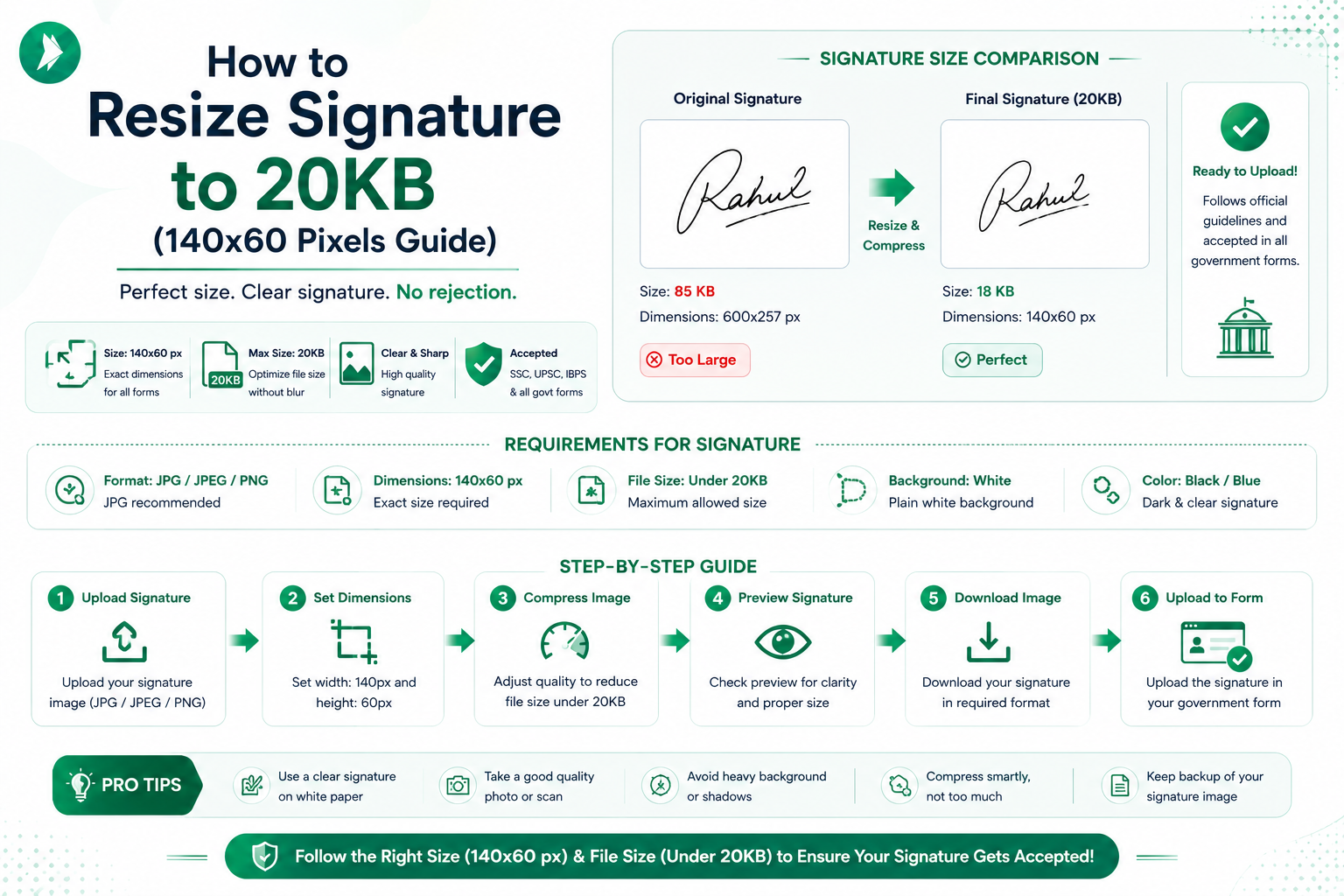
Applying for government jobs or university admissions in India often feels like a daunting task. One of the most common hurdles is meeting strict file requirements, especially when you need to upload a digital mark that stays under a specific limit. Many applicants struggle because their files are too large, leading to frustrating upload errors.
Fortunately, you do not have to be a tech expert to solve this. Our platform, ImageTo20KB.com, is designed to help you manage your files quickly and efficiently. We make it simple to adjust dimensions and compress your images without sacrificing the clarity of your pen strokes.

In this guide, we will walk you through the entire process. You will learn how to check your original file, select the right format, and verify your final output. By following these steps, you can ensure your documents are ready for any online portal with total confidence.
Key Takeaways
- Understand the common file size limits for Indian online applications.
- Learn why maintaining image quality is essential for official documents.
- Discover how ImageTo20KB.com simplifies the compression process.
- Follow a step-by-step workflow from initial check to final submission.
- Ensure your digital files meet all technical requirements every time.
Why 20 KB Matters for Indian Online Forms
Navigating the digital requirements for Indian online forms often feels like a complex puzzle. Many portals mandate that you reduce signature file size to 20 KB or less to ensure smooth processing across their servers. This specific limit helps maintain system performance while handling thousands of applications simultaneously.
Common Indian Applications That Set Signature File Limits
Whether you are applying for a government job, a bank loan, or university admission, you will likely encounter this strict constraint. Major platforms like the Union Public Service Commission (UPSC), Staff Selection Commission (SSC), and various state-level recruitment boards rely on these small file sizes. Consistency is key for these systems to store millions of documents without overwhelming their databases.
Educational portals and banking websites also follow these standards to keep their interfaces fast and responsive. When you use a tool like ImageTo20KB.com, you ensure your documents meet these specific industry standards without extra stress.
How File Size Rules Affect Upload Approval
It is common for applicants to face an immediate rejection message if their file exceeds the limit, even if the signature is perfectly clear. Portals use automated validation scripts that check the file size before they even look at the image content. If your file is 21 KB, the system may block it entirely, forcing you to start the process over.
This is why it is vital to reduce signature file size before you attempt to submit your application. By preparing your files correctly, you avoid the frustration of repeated upload errors and save valuable time during the application window.
Why a Smaller File Does Not Have to Look Blurry
Many people worry that shrinking an image will ruin its quality, but this is not always the case. You can effectively reduce signature file size while keeping the lines sharp and the contrast high. The secret lies in optimizing the resolution and compression settings rather than just shrinking the dimensions.
Using a dedicated tool allows you to strip away unnecessary metadata and optimize the color depth. This process ensures your signature remains professional and legible, meeting all official requirements while staying well under the 20 KB threshold.
how to resize signature to 20kb
Learning how to resize signature to 20kb is a vital skill for anyone applying for government portals in India. Many online applications have strict requirements, and failing to meet them often leads to rejected uploads. By following a structured approach, you can ensure your documents are always accepted on the first try.
What You Need Before Resizing
A Clear Digital Signature Image
Before you begin, ensure your source file is high quality. A clear, sharp image of your signature on plain white paper is essential for the best results. If the original scan is blurry or contains shadows, the final output may lose legibility during the compression process.
The Required Maximum File Size
Always verify the exact limit requested by the portal. Most Indian forms require files to be under 20 KB to ensure fast loading times. Knowing this target number helps you choose the right settings when you start to compress signature image files.
The Basic Process on ImageTo20KB.com
Using our dedicated tool makes the entire task straightforward and efficient. You can follow these simple steps to get your file ready:
- Upload your original signature file from your device.
- Select your desired output settings to meet the portal requirements.
- Allow the system to process the image automatically.
- Download your optimized file, which is now ready for your application.
How the Tool Balances Dimensions, Format, and Compression
Our platform uses advanced algorithms to compress signature image data without sacrificing visual quality. It intelligently adjusts the file dimensions and format while maintaining the integrity of your ink strokes. This balance is crucial when you need to learn how to resize signature to 20kb while keeping the text recognizable for verification officers.
The tool works by analyzing the pixel density and removing unnecessary metadata. This ensures that even at a very small file size, your signature remains crisp and professional. You can trust the process to handle the technical heavy lifting for you.
Check Your Signature Image Before Editing
A quick review of your signature file can save you significant time during the application process. Before you attempt to decrease signature image size, you must understand the current state of your file. Taking a few minutes to inspect your image ensures that the final result meets the strict standards required by Indian government portals.
https://www.youtube.com/watch?v=phnfjvNTsd4
Confirm the Current File Format
Most online forms in India require specific file formats, such as JPEG or PNG. Check your file extension to see if it matches the requirements of your target application. If your file is in a rare format, you may need to convert it before you can effectively decrease signature image size.
Check the Existing File Size
Knowing the current size of your file helps you determine how much compression is necessary. If your file is already close to the limit, you might only need a minor adjustment. However, if the file is several megabytes in size, you will need to be more aggressive with your settings.
Identify Blur, Shadows, and Uneven Backgrounds
Visual clarity is just as important as file size. Look closely at your signature to ensure the lines are sharp and the background is clean. While ImageTo20KB.com is excellent at optimization, it cannot magically fix a blurry scan or a photograph taken in poor lighting.
Decide Whether a New Scan Is Needed
If your original image is too dark, contains heavy shadows, or is out of focus, it is often better to start fresh. High-quality source material is the foundation of a professional-looking signature. If the quality is too low, no amount of technical adjustment will make the signature acceptable for official use.
Prepare a Clean Signature Image for Resizing
Achieving a perfect 20kb file begins long before you open any online tools. When you take the time to create a high-quality source image, you make it much easier to resize digital signature files while maintaining professional clarity. A clean starting point ensures that your final result remains legible even after compression.
Use Dark Ink and Plain White Paper
The foundation of a great signature is contrast. Always use a dark-colored pen, such as black or deep blue, on a piece of plain, unlined white paper. Avoid using pencils or light-colored ink, as these often fade during the compression process and may be rejected by automated systems.
Scan or Photograph the Signature in Good Lighting
Whether you are using a scanner or a smartphone camera, lighting is everything. Ensure your signature is placed in a well-lit area to avoid harsh shadows or gray patches on the paper. Consistent, even light helps the software distinguish your writing from the background, which is essential when you need to resize digital signature files accurately.
Crop Empty Space Around the Signature
Excessive white space around your name adds unnecessary data to your file. By cropping the image tightly around the signature, you reduce the overall file size before you even begin the conversion process. This simple step allows you to resize digital signature assets more effectively on ImageTo20KB.com without losing fine details.
Remove Background Distractions Without Damaging the Signature
If your scan includes smudges or shadows, try to clean them up using basic photo editing tools. Focus on these key preparation tips to ensure the best outcome:
- High Contrast: Ensure the ink stands out clearly against the white background.
- Sharp Edges: Avoid blurry lines that can become distorted during compression.
- Minimal Noise: Remove any stray marks or dust particles from the scan.
By following these steps, you provide a high-quality source that makes it simple to meet strict Indian application requirements.
Open ImageTo20KB.com and Select the Right Tool
Once you arrive at ImageTo20KB.com, you will find a user-friendly interface designed for quick signature adjustments. Our platform is built specifically to help you optimize signature for web submissions without the need for complex software. Whether you are a student or a professional, the layout ensures that you can complete your task in just a few clicks.
Find the Signature Resizing and Compression Feature
Upon landing on the homepage, look for the primary navigation menu or the central dashboard area. You will see clearly labeled buttons for resizing and compression tasks. These tools are specifically calibrated to meet the strict file size requirements common in Indian online applications.
Understand the Upload and Download Controls
The interface features a prominent "Upload" button that allows you to select your file from your local storage. Once the file is processed, you will see a preview window that displays your signature. Finally, a "Download" button will appear, enabling you to save the optimized file directly to your device.
Use ImageTo20KB.com on a Phone or Computer
Our website is fully responsive, meaning it works seamlessly on both desktop computers and mobile phones. You do not need to install any apps or plugins to get started. Simply open your preferred web browser, navigate to the site, and follow the same intuitive steps regardless of your device.
Review Privacy Considerations Before Uploading
We understand that your signature is a sensitive personal document. When you use our service to optimize signature for web uploads, your files are processed in a secure environment. We encourage you to always maintain a trusted workflow by ensuring you are on the official website before uploading any personal identification materials.
Upload the Signature Image to ImageTo20KB.com
Successfully uploading your signature is the bridge between a raw scan and a perfectly formatted document. When you are ready to shrink signature file size, our platform provides a secure environment to handle your sensitive data. Following these steps ensures that your digital signature is processed correctly for your Indian government or educational forms.
Choose the Correct File From Your Device
Whether you are using a smartphone, tablet, or desktop computer, finding the right file is essential. Many users have multiple versions of their signature saved, often with names like "IMG_001" or "Scan_Final." Always double-check the file date to ensure you are selecting the most recent and clearest version of your signature.
Check Supported Image Types Before Processing
Before you initiate the upload, confirm that your file is in a standard format. ImageTo20KB.com works best with common formats like JPEG, JPG, and PNG. If your device uses a proprietary format, you may need to convert it to a standard image type first to ensure the tool can read the data accurately.
What to Do if the Upload Does Not Start
If the upload process seems stuck, do not worry. First, check your internet connection to ensure it is stable. If the issue persists, try refreshing your browser or clearing your cache, as these simple steps often resolve temporary glitches. Using a modern, updated browser will provide the smoothest experience when you need to shrink signature file dimensions.
Keep the Original Signature File as a Backup
It is a smart practice to keep the untouched original file in a safe folder on your device. If the first attempt at compression does not meet your specific needs, you can always return to the original to try different settings. Having a clean master copy allows you to re-process your signature whenever you encounter new application requirements.
| Common Issue | Likely Cause | Recommended Fix |
|---|---|---|
| Upload Fails | Unstable Connection | Check Wi-Fi or Data |
| Format Error | Unsupported File Type | Convert to JPG or PNG |
| File Too Large | High Resolution Scan | Use Compression Tool |
| Blurry Result | Poor Source Quality | Re-scan with Better Light |
Adjust Signature Dimensions Without Distorting the Shape
You can easily adjust signature dimensions to meet specific requirements without ruining the original scan. When you modify a file, the goal is to keep the signature looking natural and professional. Using the right tools ensures that your handwriting remains clear and legible for any official reviewer.
Choose Practical Width and Height Settings
When you use ImageTo20KB.com, you gain access to simple controls that help you find the perfect balance. Instead of guessing, look for the specific pixel requirements provided by the application portal. Setting the width and height together allows you to maintain the integrity of your signature while meeting the file size limit.
Maintain the Original Aspect Ratio
It is tempting to stretch an image to fit a box, but this often leads to a distorted, unprofessional appearance. Always use the aspect-ratio lock feature when you adjust signature dimensions. This ensures that the height and width scale proportionally, keeping your signature looking exactly like it does on paper.
Why Excessive Resizing Creates Jagged Edges
Shrinking or enlarging an image too much can cause the fine lines of your pen strokes to break apart. This process often results in jagged edges or pixelated artifacts that make the signature hard to read. By keeping your adjustments moderate, you preserve the smooth curves of your handwriting.
Match the Image Dimensions to Indian Form Guidelines
Before you finalize your file, always compare your chosen settings with the official instructions for your specific Indian application. Many portals have unique requirements for width and height that you must follow to avoid rejection. Taking a moment to adjust signature dimensions according to these rules will save you time and prevent unnecessary errors during the upload process.
Select the Best Image Format for a 20 KB Signature
Choosing the right file format is a critical step when you prepare your signature for online submission. While you may need to compress signature file data to meet strict 20 KB limits, the underlying format determines how well your ink strokes are preserved. Different portals have unique requirements, so understanding these technical nuances is essential for a successful upload.
When JPEG Is Suitable for a Scanned Signature
The JPEG format is often the standard choice for scanned documents because it handles complex color gradients and photographic textures efficiently. It is highly effective when you need to compress signature file sizes significantly without losing the overall shape of your handwriting. Most Indian application portals accept JPEG files because they are universally compatible across various web browsers and operating systems.
When PNG Can Preserve Sharper Edges
If your signature consists of very fine, thin lines, PNG might be a better option. This format uses lossless compression, which keeps the edges of your ink strokes crisp and clear. While PNG files can sometimes be larger than JPEGs, you can still use ImageTo20KB.com to compress signature file dimensions effectively while maintaining high visual quality.
How Transparency Can Increase or Reduce Compatibility
Many users prefer PNG because it supports transparent backgrounds, which can make a signature look professional on digital forms. However, some older government portals in India may not process transparency correctly, leading to black backgrounds or distorted images. Always check if the specific application portal supports transparent files before you finalize your upload.
Choose the Format Accepted by the Target Form
Ultimately, you should prioritize the specific instructions provided by the organization receiving your document. Even if one format seems technically superior, the target form's validation rules are the final authority. Always verify the required extension in the official guidelines to ensure your application is processed without any technical errors.
Compress the Signature File Without Losing Readability
Preparing your signature for online forms requires a careful balance between file size and image quality. When you aim for a specific limit, you want to ensure that your document remains clear and professional for the reviewer.

Set a Target Slightly Below 20 KB
Many Indian government portals enforce strict file size limits for document uploads. To avoid rejection, it is wise to set your target slightly below 20 KB, such as 18 KB or 19 KB. This creates a safe margin that accounts for minor variations in how different systems calculate file size.
Balance Compression Strength and Visual Clarity
When you compress signature image files, the goal is to remove unnecessary data without blurring the ink. You should prioritize the legibility of your name over the absolute smallest file size. A slightly larger file that is perfectly readable is always better than a tiny, pixelated mess.
Reduce Signature File Size in Small Increments
It is best to reduce signature file size gradually rather than using a heavy-handed approach. By making small adjustments, you maintain better control over the final output. You can follow these steps to ensure the best results:
- Start with a moderate compression setting.
- Check the preview to ensure the ink lines remain sharp.
- Adjust the settings further only if the file is still too large.
- Stop immediately once you reach your target range.
Why Repeated Compression Can Damage Fine Lines
You should avoid repeatedly recompressing the same file. Each time you compress signature file data, the software discards more information, which can lead to jagged edges and faded ink. Always work from your original, high-quality scan to maintain the best possible resolution.
Download the Processed File From ImageTo20KB.com
Once you are satisfied with the quality, you can easily download your file from ImageTo20KB.com. Our platform ensures that your final signature file is optimized for quick uploads while keeping your personal mark looking sharp and professional. Simply click the download button to save your ready-to-use document to your device.
Verify the Final File Before Uploading
A quick final review ensures your signature meets all official requirements without any last-minute surprises. After you resize signature image files using our tool, taking a few extra seconds to inspect the output can save you from potential rejection by online portals.
Confirm That the File Is Under 20 KB
The most critical step is ensuring your file size is strictly within the allowed limit. Most Indian government portals will automatically reject any file that exceeds 20 KB, even by a small margin.
Right-click your file and select Properties or Get Info to verify the exact size. If the file is still too large, return to the tool to adjust your settings.
Check the Signature at Its Actual Display Size
Sometimes an image looks perfect on a large monitor but becomes pixelated when viewed at its actual size. Open the file in your default image viewer and set the zoom level to 100%.
This view shows you exactly how the signature will appear to the official reviewing your application. If it looks blurry or distorted at this scale, you may need to adjust your dimensions.
Inspect the Edges, Ink Density, and Background
A professional-looking signature should have clean, sharp edges and a consistent background. Use this checklist to ensure your file is ready:
- Edges: Ensure there are no jagged pixels or artifacts around the ink lines.
- Ink Density: The signature should be dark enough to read clearly against the white background.
- Background: Confirm that the background is uniform and For Free of shadows or gray patches.
Confirm the File Name and Extension
Many portals require specific file extensions like .jpg or .jpeg. Ensure your file name is simple, contains no special characters, and ends with the correct format required by the application.
Test the Image in a Form Preview When Available
Whenever a website provides a preview window, always upload your file there first. An image might look acceptable on your device but fail a portal’s specific validation rules during the final upload.
Testing the file in the preview area is the best way to resize signature image files with total confidence. If the preview shows a warning or an error, you can quickly fix the issue before finalizing your submission.
Fix Common Problems After Resizing a Signature
Encountering issues after resizing your signature is a common hurdle for many applicants in India. While digital tools make the process easier, you might occasionally find that your file does not meet the specific requirements of an online portal. Do not panic if your first attempt is not perfect, as most errors are easy to correct.
What to Do When the File Is Still Larger Than 20 KB
If your file remains over the limit, you need to decrease signature image size more effectively. Instead of repeatedly editing a saved copy, always return to your original, high-quality scan. Use ImageTo20KB.com to apply a slightly higher level of compression to reach your target.
How to Fix a Signature That Looks Too Blurry
Blurriness often happens when you try to shrink signature file size too aggressively. If the text is hard to read, your compression settings are likely too high. Try using a slightly larger file size or adjusting the dimensions to ensure the fine lines of your ink remain sharp and clear.
Resolve Wrong Orientation or Excessive White Space
Sometimes, a signature might appear sideways or have too much empty space around it. You can fix this by cropping the image before you upload it to our tool. Proper cropping ensures that the focus remains entirely on your signature, which helps the system process your application without errors.
Handle Unsupported Formats and Upload Errors
If you receive an upload error, check the file extension first. Most Indian government portals prefer standard formats like JPEG or PNG. If your file is in an unusual format, use ImageTo20KB.com to convert it, which will help you shrink signature file size while ensuring compatibility.
Recover From a Signature That Became Too Dark or Faint
If your signature looks too dark or faint, the issue usually stems from the initial scan or photograph. To decrease signature image size without losing quality, follow these tips:
- Ensure your original scan is on plain white paper.
- Use a dark blue or black pen for the best contrast.
- Avoid over-editing the brightness or contrast settings.
- Always start fresh from the original file if the current version looks distorted.
Preserve Signature Quality on Different Devices
Ensuring your signature remains crisp and clear requires careful handling of the file after it leaves our processing tool. When you optimize signature for web use, you want to ensure that the final result looks professional on every screen, from high-resolution monitors to mobile devices.

Compare the Original and Resized Files
Before you submit any document, take a moment to view both the original scan and the processed file side-by-side. This simple step helps you identify if any fine details were lost during the compression process. Visual consistency is key to ensuring your signature remains recognizable and valid for official Indian government portals.
Prevent Messaging Apps From Recompressing the Image
Many users make the mistake of sending their signature files through messaging apps like WhatsApp or Telegram. These platforms often apply automatic compression to save data, which can degrade your image quality significantly. To optimize signature for web standards, always transfer your files using cloud storage, email attachments, or direct USB connections to avoid unwanted quality loss.
Store the Optimized Signature Securely
Once you have a perfectly sized file, keep it in a dedicated folder on your computer or a secure cloud drive. Avoid leaving your signature in temporary download folders where it might be accidentally deleted or overwritten. Having a reliable backup ensures you are always ready for future applications without needing to repeat the editing process.
Use the Downloaded File Instead of a Screen Capture
Never use a screen capture to save your signature, as this method often introduces pixelation and unwanted artifacts. A screenshot does not maintain the original file properties or the precise 20 KB limit you worked so hard to achieve. Always use the direct download link provided by ImageTo20KB.com to ensure the highest possible fidelity for your digital documents.
| Method | Quality Impact | Recommended |
|---|---|---|
| Direct Download | High (Original) | Yes |
| Messaging Apps | Low (Compressed) | No |
| Screen Capture | Medium (Artifacts) | No |
| Cloud Storage | High (Original) | Yes |
Meet Indian Signature Upload Requirements With Confidence
Every online application in India carries its own unique set of rules for digital document uploads. Whether you are applying for a government job, a university entrance exam, or a banking service, the technical specifications can vary significantly. You must carefully review the official guidelines provided by the specific portal before you resize digital signature files for your submission.
Review the Exact Rules for the Relevant Application
Always start by reading the "Instructions for Upload" or "Document Specifications" page on the official website. These documents often list the exact pixel dimensions, file types, and maximum storage limits allowed. Ignoring these specific details is the most common reason for an application to be rejected during the initial upload phase.
Check Maximum File Size, Dimensions, and Format Together
A successful upload requires a perfect balance of three key elements: file size, image dimensions, and format. You should ensure that your file is not only under the 20 KB limit but also matches the required width and height ratios. Using a tool like ImageTo20KB.com allows you to adjust these parameters simultaneously, ensuring your final image meets all criteria without compromising on visual clarity.
Allow for Portal-Specific Validation Differences
It is important to remember that different portals use different software for validation. A file that passes the check on one recruitment site might trigger an error on another due to stricter background or contrast requirements. If you encounter a validation error, double-check the portal's specific help section to see if they require a specific color profile or a different file extension like JPEG versus PNG.
Keep a Compliant Backup for Repeated Applications
Once you have successfully created a file that meets the requirements, save it in a secure folder on your device. Having a ready-to-use, compliant signature file will save you significant time when you need to apply for multiple exams or services. By maintaining a high-quality master copy, you will never have to rush to resize digital signature assets again when a new application deadline approaches.
When to Resize, Compress, or Recreate a Signature Image
Deciding between resizing, compressing, or starting over is the key to a successful document upload. Many applicants in India face rejection because they do not know how to properly prepare their digital signature for government portals.
Resize When the Dimensions Are the Main Problem
Sometimes, your file size is fine, but the physical shape of the image does not fit the portal requirements. You should adjust signature dimensions when the image is too wide or too tall for the specific form field. This ensures your signature fits perfectly without being cut off or distorted.
Compress When the Image Looks Correct but Is Too Large
If your signature looks clear and has the right proportions, you likely only need to reduce the file weight. You should resize signature image files when the dimensions are already acceptable but the file exceeds the 20 KB limit. Compression allows you to keep the visual quality while meeting strict upload constraints.
Recreate the Scan When the Source Is Already Poor Quality
If your original scan is blurry, pixelated, or has a dark, messy background, editing will not help. It is better to recreate the scan using a fresh piece of white paper and a dark pen. Starting with a clean source ensures that your final file remains professional and readable.
Use ImageTo20KB.com for Fast Final Adjustments
Once you have a clean source, ImageTo20KB.com provides the perfect environment for your final edits. The platform allows you to quickly balance your file size and dimensions in one simple workflow. It is the most efficient way to ensure your document is ready for any Indian online application.
| Issue Type | Recommended Action | Primary Goal |
|---|---|---|
| Wrong Dimensions | Resize | Fit the form box |
| File Size > 20 KB | Compress | Meet upload limits |
| Blurry or Dark | Recreate | Improve clarity |
Conclusion
Preparing a signature for Indian online forms becomes a simple task when you follow a structured approach. Start by capturing a clean image on white paper, then verify your file size and dimensions before making any edits. Using ImageTo20KB.com allows you to balance quality and compression with ease, ensuring your documents meet strict portal requirements every time.
The process relies on your attention to detail at every stage. Always keep your original high-resolution scan in a secure folder. Saving a separate, optimized copy specifically for your applications ensures you have a compliant file ready for future use. This habit saves time and prevents the need to repeat the scanning process for every new form.
ImageTo20KB.com simplifies the technical side of your document preparation. While the tool handles the heavy lifting of resizing and compression, you remain in control of the final output. Check each portal’s specific guidelines to ensure your signature meets their unique validation standards. With these steps, you can submit your applications with total confidence.
Frequently Asked Questions
140x60 pixels reflects a 7:3 aspect ratio (approx 4.0cm x 2.0cm), which fits the signature box on admit cards and verification rolls without stretching.
Always use a black or dark blue ballpoint pen on plain white paper. Gel pens can bleed and pencil marks are rejected.
No. SSC, UPSC, and IBPS strictly prohibit signatures in all CAPITAL / BLOCK letters. Signatures must be in running handwriting.
To resize signature to 20kb while maintaining high quality, you should use a specialized tool like ImageTo20KB.com. The best approach is to start with a high-resolution scan, then use the tool to adjust signature dimensions and apply smart compression. By balancing the pixel width and height with the compression level, you can optimize signature for web use without the ink looking jagged or blurry.
Most Indian government, banking, and academic portals, including SBI and UPSC, set strict limits to ensure their servers can process thousands of applications quickly. If you don't reduce signature file size to meet these specific requirements, the system will likely reject your upload automatically. ImageTo20KB.com is designed specifically to help applicants meet these strict Indian form guidelines with ease.
You can easily reduce signature file size on your iPhone or Android device by visiting ImageTo20KB.com through your mobile browser. Simply upload your photo, select the 20 KB target, and the tool will shrink signature file data instantly. This eliminates the need for complex photo-editing apps and allows you to submit your application on the go.
Not necessarily. While all compression removes some data, ImageTo20KB.com uses advanced algorithms to compress signature image files by focusing on the background first. By keeping the contrast high between the dark ink and the white paper, you can decrease signature image size significantly while keeping the signature itself sharp and recognizable for verification.
When you need to adjust signature dimensions for a specific form, it is vital to maintain the aspect ratio so the signature doesn't look stretched. On ImageTo20KB.com, you can input the required width and height. The tool will then resize digital signature files to those exact specifications while ensuring the final output remains under the 20 KB threshold.
For most Indian recruitment portals, JPEG is the preferred format because it is highly efficient at handling small file sizes. While PNG is great for transparency, it often results in a larger file. If you need to compress signature file data to a very small limit, JPEG is usually the most compatible choice. Always check the specific instructions on the portal you are using before you resize signature image files.
If you decrease signature image size and it looks faint, the original source may have had poor lighting or shadows. For the best results on ImageTo20KB.com, use a black gel pen on plain white paper and take a photo in bright, natural light. Cropping out excess white space before you shrink signature file size will also help keep the signature details prominent.
Yes, privacy is a top priority when you optimize signature for web submission. ImageTo20KB.com processes your files securely, and since the tool is built for quick adjustments, your personal data is handled with care. After you resize digital signature files, you can immediately download them and use them for your official UPSC or GATE applications.
Messaging apps often apply their own heavy compression, which can ruin the quality before you even begin to resize signature image files. To get the best results, always use the original file from your camera roll or scanner when you upload to ImageTo20KB.com. This ensures the tool has the best possible data to compress signature image files accurately.
After using ImageTo20KB.com, check the file properties on your computer or phone to ensure the size is between 10 KB and 20 KB. A signature that is too small (under 5 KB) might be too pixelated. Open the file to confirm the ink is dark and the background is clean before you optimize signature for web upload on your target application portal.