
How to Resize Image to 20KB for Govt Forms Easily
A complete, practical guide to scaling and compressing candidate photographs for SSC, UPSC, Railway RRB, and State PSC application portals without rejection.
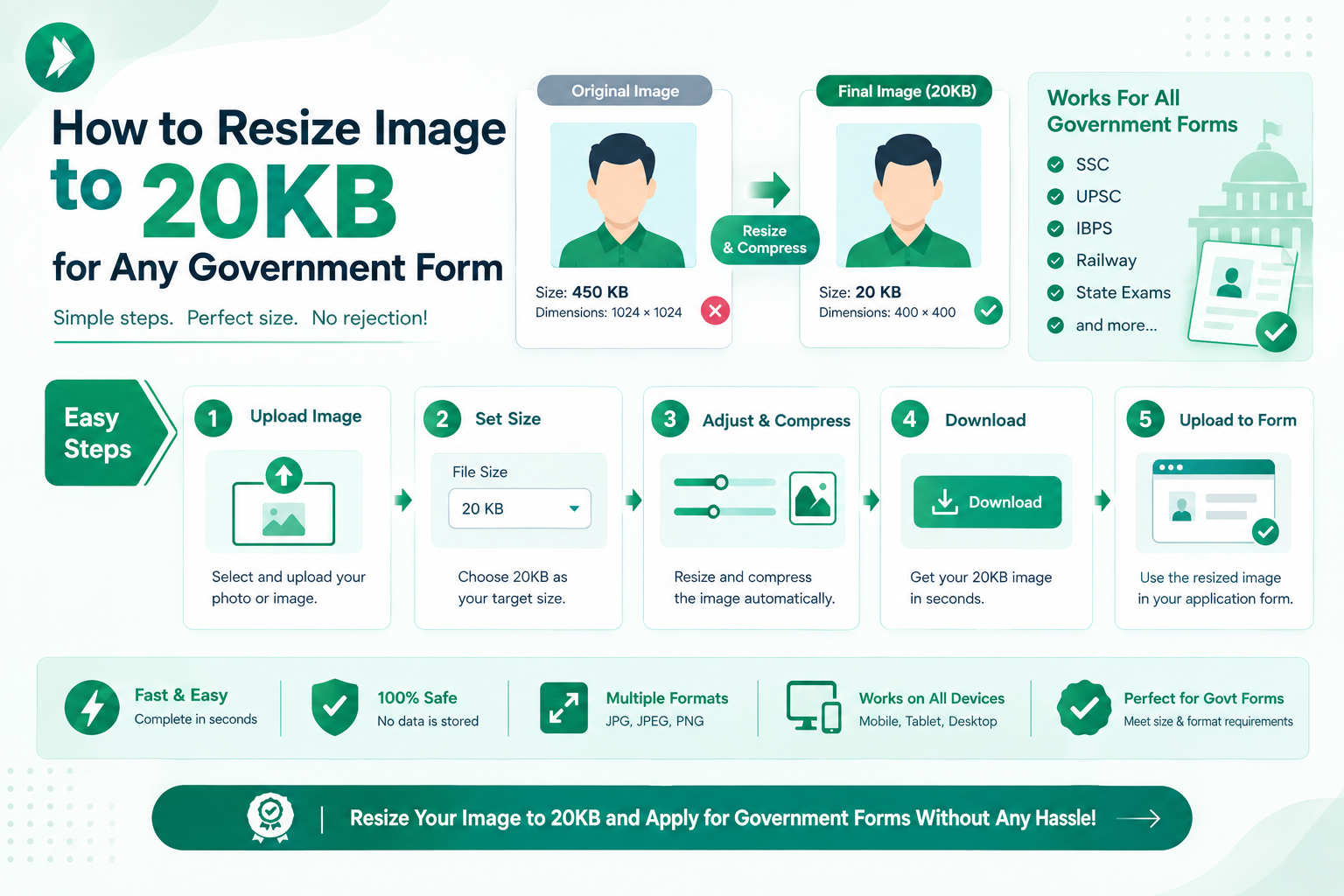
Applying for Indian recruitment portals often feels stressful when you encounter strict file size limits. Many applicants struggle when they must resize images to meet specific digital requirements. You do not need expensive software or advanced technical skills to succeed.
ImageTo20KB.com offers a simple, browser-based solution designed specifically for these tasks. By utilizing efficient image compression techniques, this tool helps you prepare your documents quickly. It is the perfect way to learn how to resize image to 20kb for govt forms without losing essential quality.

Our guide walks you through the entire workflow, from checking portal requirements to verifying your final file. You will find that meeting these upload standards is straightforward and fast. Let us simplify your application process today.
Key Takeaways
- Use ImageTo20KB.com for fast, browser-based file adjustments.
- Understand the importance of meeting strict Indian portal upload limits.
- Learn effective methods to maintain visual clarity during compression.
- Follow a simple four-step workflow to prepare your documents.
- Avoid complex editing software by using specialized online tools.
Why Government Forms Require a 20KB Image
Understanding why official websites demand a 20KB image is the first step toward a successful application. When you submit documents online, these portals must process thousands of files every hour. By enforcing strict government form image requirements, authorities ensure that their servers remain fast and accessible for everyone across India.
Common Indian application portals with strict image limits
Many popular Indian platforms, such as the Passport Seva portal, the Income Tax e-filing website, and various UPSC application pages, maintain these rigid standards. These systems are built to handle massive traffic, and large files would simply slow down the entire verification process. Consistency is key, which is why using a reliable tool like ImageTo20KB.com helps you align with these specific portal standards effortlessly.
How file size, dimensions, and format affect acceptance
It is important to realize that file size is only one piece of the puzzle. Portals also look at pixel dimensions, aspect ratios, and file formats like JPEG or PNG. If your image is the right size but the wrong shape, the system will likely flag it as invalid. Proper image compression techniques allow you to shrink the file size while keeping the necessary dimensions intact, ensuring your document meets every technical criterion.
Why an image that looks clear may still be rejected
You might wonder why a photo that looks perfectly sharp on your phone gets rejected by a government website. Even if an image appears clear to the human eye, it may contain hidden metadata or excessive color data that the portal's automated software cannot process. Sometimes, the compression quality is too high, or the file header is incompatible with the portal's specific requirements. Meeting every technical condition is essential, as even a high-quality photo can fail if it does not strictly adhere to the portal's digital guidelines.
Check the Official Image Requirements Before You Start
Navigating the technical requirements for Indian government portals starts with a clear understanding of your file specifications. Before you attempt to reduce image size online, you must identify the exact rules provided by the specific department. Adhering to these government form image requirements ensures that your application moves forward without technical delays.
Confirm the maximum file size and accepted formats
Most portals specify a strict limit, such as 20KB, to keep their servers running smoothly. You should verify if the site accepts JPEG, PNG, or PDF formats. Using the wrong file extension is a common reason for an immediate system error.
Review required pixel dimensions and aspect ratio
Beyond file size, the physical dimensions of your image matter significantly. A photo that is too wide or too tall may appear distorted when uploaded. Always check the required width and height in pixels to maintain the correct aspect ratio for your image size for official documents.
Compare photo, signature, and document upload requirements
It is important to remember that different files often have different rules. A passport-sized photograph might require a specific resolution, while a signature might need a much smaller file size to remain legible. You should treat each document as a unique task rather than applying one setting to everything.
Examples from Indian government and recruitment applications
For instance, UPSC or SSC portals often list distinct guidelines for scanned certificates versus live photographs. You might find that a certificate allows for a larger file size, whereas a signature must be kept under a very tight limit. Always read the specific instructions provided in the portal's help section before you begin.
Why the latest application notice should be your final reference
Recruitment rules can change between different application cycles. Even if you have applied before, the current notification is the only document that counts. Once you have confirmed these details, you can use a reliable tool like ImageTo20KB.com to adjust your files to meet those exact standards with confidence.
How to Resize Image to 20KB for Govt Forms with ImageTo20KB.com
Learning how to resize image to 20kb for govt forms is a vital skill for every applicant in India. Many official portals have strict upload limits, and failing to meet them often leads to immediate rejection. Fortunately, using a specialized tool makes this process seamless and stress-For Free.
"Simplicity is the ultimate sophistication in digital document management."
Open ImageTo20KB.com on a phone or computer
You do not need to install heavy software or complex editing suites to get your files ready. Simply open your preferred web browser and navigate to ImageTo20KB.com. This platform is designed to work perfectly on both mobile devices and desktop computers.
Choose a clear photograph from your device
Once the site is loaded, select the image you need to upload. Ensure the photo is clear, well-lit, and meets the visual requirements of your specific application. A high-quality source file will always yield better results after processing.
Set the target file size to 20KB
The core strength of this tool is its ability to compress image to specific file size requirements with precision. Enter "20" into the target size field to ensure the output aligns with standard government portal constraints. This step removes the guesswork from your preparation workflow.
Start compression and wait for the optimized file
Click the processing button to begin the transformation. The system will automatically adjust the image data while maintaining as much visual clarity as possible. This usually takes only a few seconds, depending on your internet connection speed.
Download the resized image and check its file details
After the process finishes, download the file directly to your device. Always verify the final size by right-clicking the file and selecting "Properties" or "Get Info." It is essential to confirm that the file is indeed at or below the 20KB threshold before attempting your upload.
What to do when the result is slightly above 20KB
If your file remains slightly over the limit, do not worry. You can simply run the image through the tool again with a slightly lower target, such as 19KB. This minor adjustment ensures you stay safely within the portal's strict boundaries without sacrificing too much quality.
Prepare Your Photo Before Compressing It
Achieving a perfect 20KB file starts long before you open any compression tool. When you provide a clean, high-quality source file, you make it much easier to resize image without losing quality. By taking a few minutes to organize your photo, you ensure that the final result meets strict government standards.
Crop the image to remove unnecessary background space
Most government portals require a specific focus on the subject. Use a simple photo editor to crop out excess wall space or distracting surroundings. Removing these extra pixels allows the compression tool to focus its processing power on the important details of your face or signature.
Use a plain, well-lit background for official photos
A cluttered background can confuse automated verification systems. Always aim for a solid, neutral wall when taking your photo. Proper lighting prevents shadows that might otherwise look like artifacts after you shrink the file size.
Keep the face centered and visible
Your face should be the primary focus of the frame. Ensure your eyes are clearly visible and that your head is positioned in the center of the image. This alignment helps the software maintain clarity even when the file is reduced to a very small size.
Correct rotation, brightness, and contrast before resizing
If your photo is tilted or too dark, fix these issues before uploading it to ImageTo20KB.com. Adjusting the brightness and contrast ensures that your features remain distinct. These simple image compression techniques work best when the original file is already balanced and upright.
How preparation improves quality at a small file size
When you start with a clean image, the compression algorithm does not have to work as hard to distinguish between your face and the background. This results in a sharper, more professional look. Preparation is the key to passing identity verification on the first try.
Why screenshots and heavily edited photos can cause problems
Avoid using screenshots, as they often contain low-resolution data that becomes blurry during compression. Similarly, avoid applying heavy filters or repeated edits. These processes often introduce digital noise that makes it impossible to resize image without losing quality, leading to potential rejection by official portals.
Choose the Right File Format for a Small Government Upload
Selecting the right file format is a critical step in preparing your documents for online government portals. While many users focus solely on pixel dimensions, the underlying file structure determines how easily you can meet strict size limits. Utilizing the best tools for image resizing, such as ImageTo20KB.com, allows you to manage these technical requirements with a simple, browser-based workflow.
When JPEG is the practical choice for photographs
For most official photographs, JPEG is the industry standard. This format uses lossy compression, which effectively discards invisible data to keep file sizes small. It is the most reliable choice when you need to squeeze a high-quality portrait into a 20KB limit without losing essential facial details.
When PNG may create an unnecessarily large file
In contrast, PNG files are designed for lossless quality and transparency. Because they preserve every pixel exactly, they often result in much larger file sizes than JPEGs. Using a PNG for a standard government photo often makes it impossible to reach the 20KB threshold without extreme, quality-destroying compression.
How format selection affects clarity and compatibility
Your choice of format influences how well the system processes your upload. While advanced image compression techniques can help shrink files, the base format dictates the efficiency of that process. ImageTo20KB.com provides a streamlined way to convert and compress your files, but you must ensure the final output matches the portal's technical requirements.
Use the format listed in the application instructions
Always prioritize the specific guidelines provided by the government portal over personal preference. If the instructions explicitly request a JPEG, uploading a PNG—even if it is small—may lead to an automatic rejection. Following the official rules is the most effective way to ensure your application is processed without delays.
Resize Dimensions and Compress Quality in the Right Order
Mastering the balance between file size and visual clarity is essential for successful government form submissions. When you need to resize image without losing quality, the sequence of your actions matters significantly. By following a logical workflow, you ensure that your documents remain professional and legible while meeting strict 20KB requirements.
https://www.youtube.com/watch?v=bQgCoQdtOFM
Reduce oversized pixel dimensions before heavy compression
Most high-resolution photos taken by modern smartphones are far larger than what government portals require. Instead of applying aggressive image compression techniques immediately, start by scaling down the pixel dimensions. Reducing the width and height first removes unnecessary data, which makes the subsequent compression process much lighter and more effective.
Adjust JPEG quality gradually instead of using extreme settings
It is tempting to jump straight to the lowest quality setting to hit that 20KB target, but this often ruins the image. We recommend adjusting the JPEG quality in small, incremental steps. After each adjustment, take a moment to inspect the fine details, such as the clarity of your eyes or the sharpness of your signature.
"Quality is never an accident; it is always the result of high intention, sincere effort, intelligent direction and skillful execution."
Balance sharpness, readability, and file size
Finding the sweet spot requires a careful balance between sharpness and file size. You want the file to be small enough for the upload portal, but clear enough for officials to verify your identity. Using ImageTo20KB.com allows you to test these settings safely without damaging your original file, ensuring you always have a clean source to work from.
Why shrinking dimensions can preserve more quality than repeated compression
Repeatedly saving a file after applying heavy image compression techniques introduces digital artifacts that degrade the image. By shrinking the dimensions first, you maintain the integrity of the pixels. This approach is far superior to forcing a large, high-resolution file through extreme compression, which often results in a blurry or distorted mess.
- Step 1: Crop the image to the required aspect ratio.
- Step 2: Resize the dimensions to fit standard portal requirements.
- Step 3: Apply gradual compression until you reach the 20KB limit.
Verify That the Final File Meets the 20KB Limit
Verification is the best way to avoid rejection when dealing with government form image requirements. While ImageTo20KB.com handles the heavy lifting of compression, you remain responsible for ensuring the final output is perfect for your specific application. Taking a few extra seconds to review your file can save you from the frustration of a rejected submission.
Check the exact file size after downloading
Once you download your file, right-click it and select "Properties" or "Get Info." You must confirm that the file size is indeed 20KB or less. Relying on a quick glance is not enough when dealing with strict image size for official documents.
Confirm the extension, pixel dimensions, and file name
Check that your file ends in the correct extension, such as .jpg or .jpeg, as required by the portal. Verify that the pixel dimensions match the guidelines provided in your application instructions. Finally, ensure the file name is simple and For Free of special characters to prevent upload errors.
Open the image to inspect faces, signatures, and text
Always open the file to view it at full size. Check that your face is clearly visible and that any text or signatures remain legible after the compression process. If the image looks blurry or pixelated, you may need to adjust your original source file before compressing it again.
Distinguish decimal KB from the size shown by your device
Be aware that your computer or phone might display file sizes using different math conventions. Some systems use decimal kilobytes, while others use binary kibibytes. This can sometimes cause a slight discrepancy in the numbers you see on your screen versus what the portal detects.
Leave a small safety margin when the portal enforces a maximum
If a portal strictly enforces a 20KB limit, try to aim for 18KB or 19KB. Leaving this small safety margin ensures that your file is accepted without any issues. It is better to be slightly under the limit than to be right on the edge of the threshold.
| Checklist Item | Action Required | Status |
|---|---|---|
| File Size | Verify under 20KB | Confirmed |
| File Format | Check .jpg or .png | Confirmed |
| Legibility | Inspect text/face | Confirmed |
| Dimensions | Match portal rules | Confirmed |
Use ImageTo20KB.com on a Phone
Managing your digital documents while on the go has never been easier. You no longer need to rely on a desktop computer to reduce image size online for your important applications.
Whether you are using an Android device or an iPhone, you can access professional tools directly through your mobile browser. This flexibility makes it one of the best tools for image resizing when you are in a hurry to meet a submission deadline.
Upload a photo from Android or iPhone storage
Start by opening your preferred mobile browser and navigating to the website. You can select any photograph directly from your device's gallery or file manager.
The interface is designed to handle mobile uploads seamlessly. Simply tap the upload button to browse your local storage and pick the image you need to compress.
Save the compressed image where it is easy to find
Once the compression process finishes, make sure to download the file to a folder you can access quickly. Many users prefer saving files to the "Downloads" folder or a dedicated "Govt Forms" folder.
Keeping your files organized prevents confusion later. This simple step ensures you always know exactly where your optimized document is located.
Rename the file using simple letters and numbers
After downloading, rename your file to something clear and recognizable. Avoid using special characters or long, complex names that might cause errors on government portals.
A simple name like "Passport_Photo_Final" or "Signature_01" works best. This practice helps you distinguish the new, smaller file from the original version.
Prevent accidental selection of the original oversized photo
It is very common to accidentally pick the wrong file when uploading to a portal. Always double-check the file size in your gallery before selecting it for your application.
Deleting or moving the original, large file to a separate folder can help you avoid mistakes. Being careful during this step saves you from receiving unnecessary rejection notices.
Check browser downloads and device permissions
Sometimes, your phone might block downloads from unknown sources or restrict browser access to your files. Ensure your browser has the necessary permissions to save files to your device storage.
If you cannot find your image, check your browser's "Downloads" section. Most mobile browsers keep a history of recent files, making it easy to locate your newly resized image.
| Feature | Desktop Method | Mobile Method |
|---|---|---|
| Accessibility | Requires PC/Laptop | Anywhere with Internet |
| File Transfer | Often requires USB/Email | Direct from Gallery |
| Speed | Moderate | Very Fast |
| Convenience | Low | High |
Fix Common Problems When a 20KB Image Is Rejected
Encountering a rejection message when uploading your documents can be frustrating, but it is usually easy to fix. Most errors occur because the file does not perfectly align with the specific government form image requirements set by the portal. By identifying the root cause, you can quickly adjust your settings and get back on track.

The file is still larger than the portal limit
If the system claims your file is too large, it means the compression level was insufficient. You may need to slightly reduce the pixel dimensions or increase the compression ratio. Remember that precision is key when you need to resize image without losing quality.
"Quality is never an accident; it is always the result of high intention, sincere effort, intelligent direction and skillful execution."
The uploaded image appears blurry or distorted
Blurriness often happens when you apply too much compression to a low-resolution original. To fix this, start with a high-quality, sharp photograph. Avoid aggressive compression settings that strip away too much detail from faces or signatures.
The website does not recognize the file format
Most Indian government portals strictly prefer JPEG or JPG formats. If you are uploading a PNG or a HEIC file from an iPhone, the system might reject it. Always ensure your final file ends in a standard .jpg or .jpeg extension to ensure maximum compatibility.
The image has the wrong dimensions or orientation
Sometimes, a photo is uploaded sideways or fails to meet the required aspect ratio. Check the portal guidelines to see if they require a portrait or landscape orientation. Use a simple rotation tool before you begin the compression process to ensure the final output is perfectly aligned.
How to create a new optimized copy instead of repeatedly editing one file
A common mistake is editing the same compressed file over and over, which leads to a significant loss in visual clarity. Always return to your original, high-resolution source file whenever you need to make a change. By creating a fresh copy each time, you ensure that your final submission remains clear, professional, and compliant with all official standards.
Resize a Signature or Scanned Document Without Losing Legibility
When you need to upload a signature, maintaining clarity is just as important as meeting the file size. Many users struggle to balance the image size for official documents with the need for sharp, readable text. By following a few simple steps, you can ensure your files pass validation every time.
Crop blank margins around a signature
Before you begin, remove any unnecessary white space surrounding your signature. Excess margins often force the software to shrink the actual content too much, which leads to a loss of detail. Cropping allows the important strokes to occupy more of the available pixel space.
Preserve dark strokes against a light background
Official portals require high contrast to verify your identity. Ensure your signature is written in dark ink on a clean, white sheet of paper. This contrast helps the system distinguish your writing from the background even when you compress image to specific file size.
Keep scanned text readable after compression
Certificates often contain small, dense text that becomes blurry if compressed too aggressively. You should prioritize the legibility of these details over extreme file reduction. If the text looks faint, consider increasing the brightness slightly before you finalize the upload.
Use the portal’s required dimensions for signatures and certificates
Every government website has unique rules regarding pixel width and height. Always check these specific requirements before you start editing. Using the wrong dimensions can cause the system to reject your file, even if the file size is perfect.
Check for shadows, folds, and uneven lighting before uploading
Shadows and folds often create dark patches that confuse automated scanners. Always smooth out your documents and use even, natural lighting to avoid these issues. A clean, flat scan ensures that your document remains professional and easy to read.
| Document Type | Primary Goal | Key Optimization Tip |
|---|---|---|
| Signature | High Contrast | Crop tight to the ink |
| Certificate | Text Legibility | Maintain high resolution |
| Identity Proof | Clear Details | Remove background noise |
Protect Your Privacy While Reducing Image Size Online
Handling sensitive documents requires more than just technical skill; it demands a commitment to your personal privacy. When you decide to reduce image size online, you are often dealing with files that contain faces, signatures, or identification numbers. Protecting this data is just as important as meeting the technical standards for your application.
Use a trusted connection when uploading personal documents
Always ensure you are using a secure and private internet connection before uploading any personal files. Avoid using public Wi-Fi networks at cafes or transit hubs, as these can expose your data to unauthorized access. A private home network or a secure mobile data connection provides a much safer environment for your digital tasks.
Avoid including unnecessary identity information in the image
Before you process your files, take a moment to crop out any sensitive details that are not required by the portal. While you must meet specific government form image requirements, you should never upload more information than is strictly necessary. Minimizing the visible data in your photograph or scan is a simple yet effective way to enhance your security.
Download the result and remove temporary copies when appropriate
Once your file is ready, download it immediately to your local device. If you are using a shared computer, make sure to delete any temporary copies from the "Downloads" folder or the desktop. Keeping your workspace clean helps prevent others from accidentally accessing your personal documents later.
Review ImageTo20KB.com’s handling of uploaded files before use
It is wise to check the privacy policy of any tool you use to ensure your data is handled responsibly. Take a moment to review how ImageTo20KB.com manages uploaded files before you begin your work. These privacy precautions should always complement your efforts to satisfy government form image requirements, ensuring your submission is both compliant and secure.
Best Practices for Meeting Government Form Image Requirements
Meeting strict image size for official documents does not have to be a stressful experience if you follow a few simple rules. By establishing a repeatable routine, you can handle various online portals with confidence and ease. Proper preparation is the key to ensuring your files meet all government form image requirements without unnecessary delays.

Read the application instructions before taking the photo
Every portal has unique rules regarding background color, lighting, and facial expressions. Always review the official guidelines provided by the specific department before you capture your image. This proactive step prevents the need for retakes and ensures your photo aligns with the expected standards.
Keep separate optimized copies for different portals
Different government websites often have varying constraints for file size and dimensions. It is safer to maintain separate folders for each application rather than reusing one file everywhere. Using ImageTo20KB.com allows you to quickly generate specific versions tailored to each portal's unique needs.
Use consistent file names for photos and signatures
Organizing your digital files with clear, descriptive names helps you stay on track during the application process. Use a simple naming convention like "Passport_Photo_Final.jpg" or "Signature_Scan_01.jpg" to avoid confusion. This habit ensures you always upload the correct document to the right field.
Upload early enough to correct unexpected validation errors
Technical issues can occasionally arise during the submission process, regardless of how well you prepare. By starting your application well before the deadline, you gain the time needed to troubleshoot any validation errors. If a file is rejected, you can quickly adjust your settings and try again without the pressure of a closing window.
Maintain the original high-quality image for future applications
Always keep a high-resolution master copy of your photograph or signature in a secure location. You should never overwrite your original file with a compressed version. Having the original allows you to create new, perfectly sized copies whenever you encounter different image size for official documents criteria in the future.
- Check official guidelines for every new application.
- Save optimized files in dedicated folders.
- Use simple, descriptive file names.
- Submit your documents at least 24 hours before the deadline.
- Store your original high-quality files in a cloud backup.
Why ImageTo20KB.com Makes Small-File Uploads Easier
Navigating the technical requirements of government portals can often feel overwhelming, especially when you are in a hurry. Many applicants struggle with files that are too large, leading to frustrating upload errors. ImageTo20KB.com simplifies this process by providing a streamlined, user-friendly interface designed specifically for these common hurdles.
Compress an image to a specific file size without complex software
You no longer need to master professional photo editing programs just to meet a simple upload requirement. This platform allows you to compress an image to a specific file size with just a few clicks. By automating the technical adjustments, it ensures your documents meet strict criteria without sacrificing essential clarity.
Work from a browser instead of installing an editing program
One of the greatest advantages of this tool is its accessibility. Because it operates entirely within your web browser, you do not need to download or install heavy software on your device. This makes it one of the best tools for image resizing for users working from smartphones, public computers, or devices with limited storage space.
Prepare photos for Indian forms with a simple workflow
Whether you are applying for a passport, a PAN card, or other official documents, the workflow remains consistent and fast. You simply upload your file, select your target size, and let the system handle the rest. This efficiency is vital when you are managing multiple documents like signatures, photographs, and scanned certificates simultaneously.
When a dedicated image resizing tool is more convenient than manual editing
Manual editing often involves trial and error, which can be incredibly time-consuming. When you use a dedicated tool, you avoid the guesswork associated with quality settings and pixel dimensions. It provides a reliable, consistent result every time, ensuring your application moves forward without unnecessary delays or technical rejections.
Conclusion
Preparing documents for official portals requires precision and patience. You can successfully navigate these requirements by reading the specific guidelines for your application before you begin the process.
Always start by capturing a clear, well-lit image. When you need to reduce image size online, ImageTo20KB.com provides a reliable way to meet strict portal limits. This tool helps you resize image to 20kb for govt forms while maintaining the visual clarity necessary for identity verification.
Take a moment to verify the final file size, format, and dimensions before you click the upload button. It is vital to resize image without losing quality so that your signature and facial features remain sharp. Keeping a copy of your original file ensures you have a backup if you need to adjust your settings for a different portal.
Create a unique, properly named file for every specific application you submit. This simple habit prevents confusion and keeps your digital records organized. By following these steps, you ensure your documents are ready for any Indian government portal with confidence and ease.
Frequently Asked Questions
Government recruitment portals receive millions of applications during recruitment cycles. Enforcing strict 20KB to 50KB limits prevents server overload and ensures admit card generation scripts process photos instantly.
For SSC and RRB forms, 200x230 pixels or 3.5x4.5 cm at 100-150 DPI is ideal. It naturally outputs a crisp JPG weighing between 15KB and 20KB.
Crop tight around your face before resizing, crop out large empty backgrounds, and avoid uploading screenshots from messaging apps.
Yes. Our in-browser tool runs 100% locally on Android and iPhone browsers with zero software installation required.
Using a dedicated tool like ImageTo20KB.com is the most efficient way to learn how to resize image to 20kb for govt forms. This browser-based solution allows you to compress image to specific file size by simply uploading your file and setting the target limit, making it perfect for Indian recruitment portals like the Staff Selection Commission (SSC).
Portals for the Union Public Service Commission (UPSC) or Banking Personnel Selection (IBPS) enforce strict government form image requirements to manage server space and ensure fast processing of millions of applications. Even if an image looks sharp, it may be rejected if the image size for official documents exceeds the limit or fails to meet the required pixel dimensions.
Yes, you can resize image without losing quality by first cropping out unnecessary background space and adjusting the pixel dimensions before applying the final shrink. By utilizing the advanced image compression techniques available on ImageTo20KB.com, you can maintain the clarity of your facial features or signature while staying safely under the 20KB ceiling.
ImageTo20KB.com is recognized as one of the best tools for image resizing because it is purpose-built for official standards. Unlike heavy software like Adobe Photoshop, this tool allows you to reduce image size online instantly, ensuring your photo meets the technical criteria of government portals without a steep learning curve.
For most official documents, JPEG (or JPG) is the preferred format. It is much easier to compress image to specific file size using JPEG because it handles photographic data more efficiently than PNG. Always check your specific application notice to ensure the image size for official documents and the format align with their current rules.
Absolutely. You can access ImageTo20KB.com via any mobile browser on Android or iPhone. This is especially helpful if you need to take a quick photo of a signature or certificate and immediately how to resize image to 20kb for govt forms without needing to transfer files to a desktop computer.
If your file meets the size limit but is still rejected, check the file name for special characters; most portals prefer simple names like "myphoto.jpg." Additionally, ensure you have followed the government form image requirements regarding aspect ratio. If the image appears blurry, try creating a fresh copy on ImageTo20KB.com using a higher-resolution original rather than re-compressing an already small file.
To keep a signature legible, ensure the original scan has high contrast with dark ink on a plain white background. When you reduce image size online, crop the signature closely to remove empty white space. Using these image compression techniques helps the text stay sharp even when the image size for official documents is extremely small.
Privacy is a priority when you reduce image size online. When using ImageTo20KB.com, it is a best practice to use a secure connection and download your processed files immediately. This tool is designed to help you meet government form image requirements efficiently while providing a streamlined, browser-based workflow that avoids the need for permanent file storage on the platform.